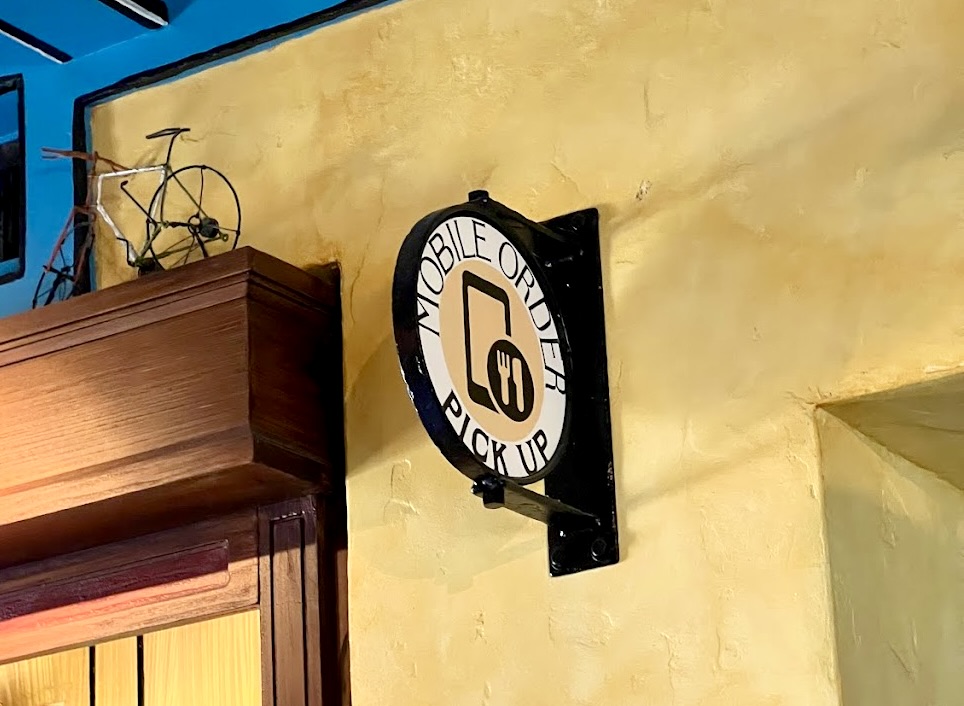
Mobile Order is an important part of dining at Walt Disney World. It’s one thing everyone should learn prior to visiting the most magical place on earth.
If you don’t know how to place a Mobile Order at Disney World, you’ve come to the right place.
Here, I go over how to use Mobile Order at Disney World, along with providing tips and answering some frequently asked questions.
Let’s get to it!
In this article
What is mobile order at Disney World?
Mobile Order at Disney World allows you to order food and drinks directly in Disney World’s mobile app, My Disney Experience, without waiting in line.

Mobile Order is available at select Quick Service locations, along with a few Table Service restaurants.
How to use mobile order at Disney World
Mobile Order can be a huge time saver, especially when lines at Quick Service restaurants get long. Here’s how it works.
Open the My Disney Experience app and click “+” at the bottom

Click on “Order Food”

Select order “as soon as possible” or “schedule for later”

If you schedule for as soon as possible, your mobile order will be available at the current time. If you schedule for a later pick-up time, you can select a future arrival window.
Filter by location and find a restaurant to place an order

Click “Begin Order” or choose a future pick-up time
“Begin Order” will appear if you place an order for as soon as possible:

Future pick-up times will appear if you schedule your Mobile Order for later:

Select food/drink item(s) you want to order

Make necessary selections and click “+Add”

Keep in mind that sometimes you can make customizations (like selecting a side or modifying a dish). Be sure to check out that option if available under a particular food/drink item.
Select “View My Order” or tap the shopping bag in top right-hand corner

Click “Review Order Summary” at bottom

Underneath the items you’ve selected, you can make modifications by tapping “Modify,” along with adjusting the quantity or deleting an item from your order. At the bottom of this screen, you can also add more items.
Scroll to select payment and tap “Purchase” at bottom

You’ll see this screen if your arrival window isn’t ready

Select “I’m here, prepare my order” when your arrival window opens and you’re at the restaurant

A screen will appear noting, “We’re Preparing Your Order”

The screen will go purple alerting you that your oder is ready, along with telling you where to pick it up

When placing a mobile order at Disney World, if you know where you want to eat, you can also search for the restaurant directly. Then, select “Order Food” and follow most of the same steps previously noted.

Frequently Asked Questions about Mobile Order
How can you tell if a location offers Mobile Order in Disney World?

If you see the “Order Food” icon in the app, that particular location offers Mobile Order.
Can you cancel or modify the time for a Mobile Order at Disney World?
Yes, to both!
To modify the time, simply select “Change Arrival Window”. If you want to cancel, click “Cancel Order”.

You can modify or cancel as long as you haven’t clicked the “I’m Here” button.
Can you Mobile Order alcohol at Disney World?
Yes, you can Mobile Order alcohol at Disney World. Be sure you have proper identification when picking up your alcohol order to prove you are 21 or older.

Keep in mind that Disney World has a rule that adults can only carry two alcoholic drinks at once, so if you order more than two drinks, you’ll need another adult to help you carry the beverages.
How far in advance can you Mobile Order at Disney World?
At the beginning of the day, you can start placing a Mobile Order for breakfast, lunch, and dinner.

For example, you don’t have to order lunch/dinner right at lunch/dinner time, but you can place a lunch/dinner order in the morning. Of course, breakfast items are only available during breakfast hours, so you’ll want to order those first thing.
Keep in mind that you also don’t have to wait until you arrive at the restaurant to Mobile Order. The whole point of Mobile Order is to be able to order food and drinks from anywhere without having to do it at the restaurant. Make sure you take advantage of that.

I recommend planning ahead for busier locations. If you know you want to grab lunch at, say Woody’s Lunch Box, place that order first thing in the morning and then you can always adjust the arrival window, if needed.
I also suggest mobile ordering at off-peak dining times to avoid longer waits and bigger crowds.
How do you find your Mobile Order in the Disney World app?

When you open the My Disney Experience app, you’ll see your order on the home screen. You can also go to “My Plans” to see your future Mobile Order.

For iOS devices, you can track the status of your mobile order without opening the app.

You can even select that you’ve arrived at the location and are ready to pick up your order.
Is there a minimum you have to place for Mobile Order?
No, there isn’t a minimum when it comes to how much you spend or the number of items you order when using Mobile Order at Disney World.
Mobile Order To-Go for Table Service Restaurants
In addition to placing mobile orders from Quick Service restaurants, there are select Table Service restaurants at Walt Disney World Resort hotels that offer Mobile Order.

This is such a nice perk, especially for guests staying at these hotels. You can Mobile Order from the full menu and then pick it up at the restaurant.
These locations currently include:
- Ale & Compass Restaurant (Yacht Club)
- Geyser Point Bar & Grill (Wilderness Lodge)
- Kona Café (Polynesian)
- Oliva’s Cafe (Old Key West)
- Sanaa (Animal Kingdom Villas — Kidani Village)
- Steakhouse 71 (Contemporary)
- Three Bridges Bar & Grill (Coronado Springs)
- Trattoria al Forno (Boardwalk)
- Wailulu Bar & Grill (Polynesian Villas & Bungalows)
Let me know if you have any questions about using Mobile Order at Walt Disney World!

Leave a Reply